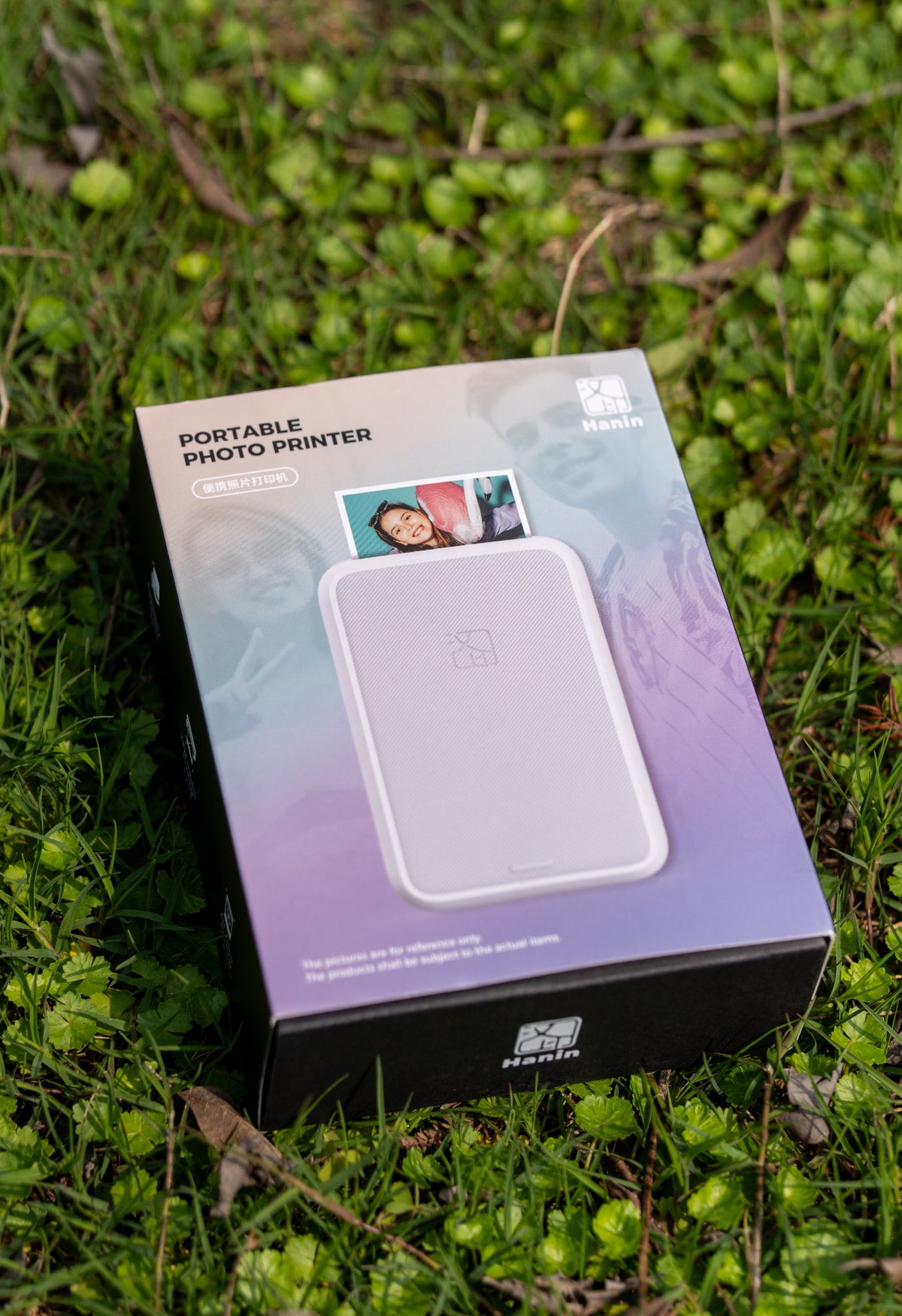
1. Product Information
• Product Dimensions: 117*77.5*24 mm
• Device Weight: Approximately 200g (without accessories)
• Resolution: 300DPI
• Printing Method: Zink inkless printing
• Power Interface: 5V/2A Type-C
• Battery Capacity: 550mAh
• Connection Method: Bluetooth connection, iPhone magnetic quick connect
• Compatible Systems: Android, iPhone, HarmonyOS
• Special Features: Built-in exclusive camera, APP creative editing, high-tack adhesive photo paper
• Supported Models: iPhone 12 series and above support magnetic connection
2. Key Highlights
• Lightweight and Portable: 200g lightweight body, fits in your pocket, no burden to carry out, magnetic design allows direct attachment to the phone, stays securely attached when carried
• HD Inkless Printing: Utilizes Zink printing technology, 300dpi high-definition quality, no ink required, eco-friendly and affordable. Paired with high-tack adhesive photo paper, photos can be directly affixed to notebooks, phone cases, etc.
• Ultra-Convenient Connection: Built-in Apple MFi chip, iPhone 12 and above models can magnetically trigger quick commands for connection with a single tap. Android and HarmonyOS systems can also connect instantly via Bluetooth, allowing for immediate shooting and printing.
• Rich Creative Options: With the exclusive APP, it offers various features such as real-time photo frames, filters, collages, ID photo templates, and more. From shooting to printing takes only about 45 seconds, making it easy to create exclusive, high-quality photos.
• Stable Battery Life: 550mAh battery capacity, a full charge can print about 20 photos, and charging only takes 2-3 hours, meeting your daily outdoor recording needs.
• Non-slip and Comfortable Grip: The body features a delicate textured cover with a non-slip design, making it less likely to slip from your hand and safer for outdoor use.
3. How to Use
1. Load Photo Paper: Open the printer cover, insert Zink adhesive photo paper, and close the cover to complete preparation.
2. Device Connection:
◦ iPhone 12 and above models: Attach the printer magnetically to the back of your phone, open the Shortcuts app, follow the steps to bind the printer, and then you can start printing with one tap.
◦ Android/HarmonyOS systems: Turn on Bluetooth on your phone, pair and connect to the printer, and then open the exclusive APP to use.
3. Shoot/Select Photos: You can directly use the in-app camera to shoot, or select existing photos from your phone, adding frames, filters, layouts, and other effects as needed.
4. Confirm Printing: After editing, click the print button and wait for about 45 seconds to get a high-definition physical photo.
5. Photo Usage: After printing, peel off the adhesive backing of the photo paper, and you can stick it anywhere you like, such as notebooks, phone cases, luggage, etc.
4. Real User Reviews
• "The device is super light, no burden to carry in my pocket. The magnetic attachment to my phone makes it super convenient for outings, all my friends ask where I bought it!"
• "The printed photos are very clear and the colors are saturated. The adhesive photo paper is really practical, sticking it on my notebook gives it a great commemorative feel~"
• "Connecting is super easy, my iPhone 14 automatically connects when I attach it magnetically. I can print photos right after taking them, no waiting at all!"
• "The APP has tons of templates, I can print collages, ID photos, everything. I take it with me when traveling, so I can print group photos on the spot for my friends~"
• "The battery life is amazing, I went out for a day with a full charge, printed over a dozen photos and still had power. It's really perfect for people who love to document their lives!"
5. Precautions
• Only iPhone 12 series and above models support magnetic quick connection; other models require Bluetooth connection.
• Only Zink special adhesive photo paper can be used. Do not use other specifications of photo paper to avoid damaging the printer.
• Do not forcibly pull the photo paper during printing to avoid paper jams or damage to the machine.
• Avoid placing the printer in high temperature, humid, or direct sunlight environments to prevent affecting its lifespan.
• The device is an electronic product, do not expose it to water. If it accidentally gets wet, immediately power it off and wait for it to be completely dry before using it again.
• Please use a 5V/2A charger for charging to avoid damaging the battery with incompatible charging equipment.
• Store photo paper in a cool, dry place to prevent moisture from affecting normal printing.
• If the printer experiences a paper jam, please power it off first, then open the cover and remove the photo paper. Do not pull violently.